¶ 🧯 Troubleshooting & Common Issues
This page covers the most common problems when using PlateUp! Steam Workshop mods, plus the fastest ways to fix them.
⚠️ PlateUp! updates and mod updates can cause issues overnight.
If something suddenly breaks, it may not be your fault.
¶ 🚑 Quick Fix Checklist (Try These First!)
Before digging into specific errors, try these options in order:
¶ Simple Restart
As silly as it sounds, sometimes simply restarting the game and waiting a little bit can solve alot of problems!
- Fully close PlateUp!
- Restart Steam
- Wait for Workshop downloads to finish
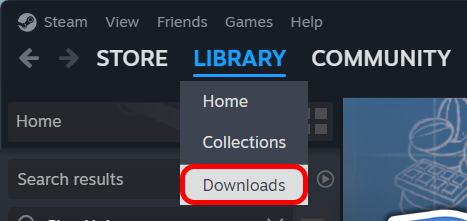
- Steam → Library → Downloads
- Launch PlateUp! again
¶ Verify Game Files
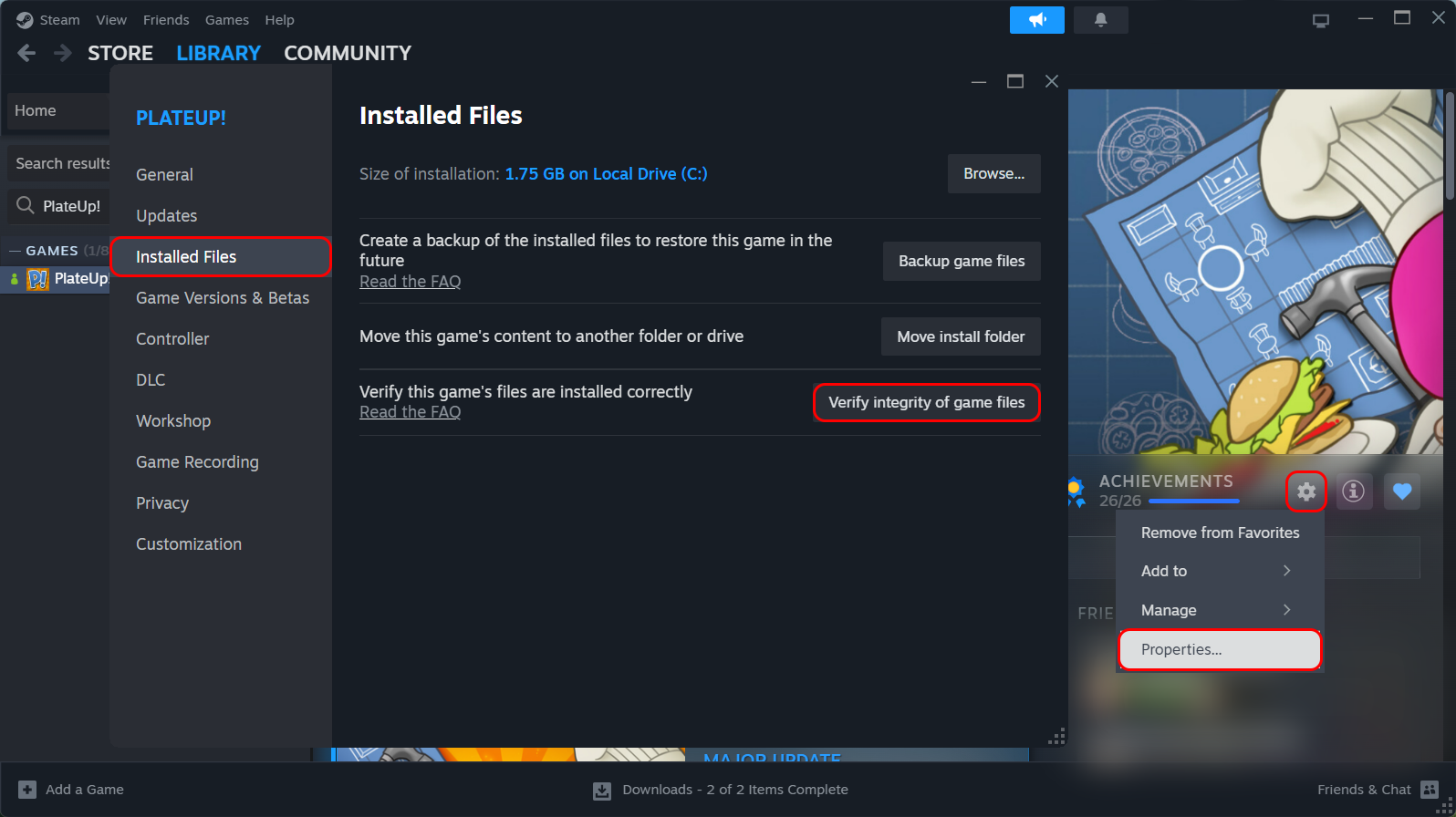
If a Simple Restart didn't quite work, Steam may be having trouble downloading the correct files. Let's force it into redownloading.
- Fully close PlateUp!
- Open the PlateUp! page in Steam
- Go to Properties → Installed Files → Verify Integrity of Game Files
- Wait... No, seriously! This will validate all files for both the game and mods are downloaded correctly
¶ 🧩 Mods Not Working / Nothing Changed In-Game
¶ Symptoms
- You subscribed to a mod, but nothing happens
- No new content appears
- The mod is marked “Subscribed” but doesn’t seem active
¶ Common Causes
- The mod only works in certain modes (host-only, specific game types, etc.)
- The mod is outdated
- The mod requires dependencies
- Steam hasn’t finished downloading the mod yet
¶ Fix
- Check Steam → Downloads and wait for Workshop items to finish
- Read the mod’s Workshop page for:
- Required Items
- setup steps
- compatibility notes
- Restart PlateUp! after subscribing
- Try unsubscribing and resubscribing to the mod
¶ ⏳ Steam Workshop Mods Not Downloading
¶ Symptoms
- You subscribe but nothing downloads
- Mods stay stuck in “Pending”
- The mod never appears in-game
¶ Fix
- Open Steam → Downloads
- Check for paused downloads
- Restart Steam completely
- Make sure Steam is online
- Try subscribing to a different mod to confirm Workshop works at all
If downloads are still stuck:
- Pause and resume the download
- Change Steam download region (Steam Settings → Downloads)
¶ 💥 Game Crashes On Launch After Installing Mods
¶ Symptoms
- PlateUp! crashes immediately
- The game loads briefly then closes
- The game crashes when entering a run
- Game gets stuck on a wood or blue screen
¶ Common Causes
- Two mods conflict with each other
- A mod is outdated for the current game version
- A dependency mod is missing or outdated
¶ Fix (Fastest)
- Unsubscribe from the most recent mod you added
- Launch the game
- If it works, resubscribe mods one-by-one until you find the one causing the crash
¶ Fix (Clean Reset)
- Unsubscribe from all mods
- Launch PlateUp! (confirm it works vanilla)
- Subscribe again in small batches (2–3 at a time)
¶ 🧱 Missing Dependencies
¶ Symptoms
- Mod partially works but features are missing
- Nothing happens even though the mod is subscribed
- The mod page mentions another mod is required
¶ Fix
On the Workshop page, look for:
- Required Items
- “This mod requires…”
Subscribe to every required dependency.
💡 A lot of mods depend on shared libraries/framework mods.
Missing just one can make everything fail.
¶ 🔁 Mods Worked Yesterday, Now They Don’t
¶ Common Causes
- PlateUp! updated
- A mod updated
- A dependency updated
- Two mods updated and now conflict
¶ Fix
- Check PlateUp!’s Steam “News” for a recent update
- Check the mod Workshop pages for recent patch notes
- If you’re in the middle of a run:
- try continuing with the same mod list
- avoid adding/removing mods mid-save unless the mod author says it’s safe
¶ 💾 Save / Run Problems
¶ Symptoms
- Your save won’t load
- Your run crashes on day start
- Items are missing or replaced with weird placeholders
- The game softlocks
¶ Common Causes
- You removed a mod that the save depended on
- A mod changed IDs or data structure during an update
- The mod is not compatible with existing saves
¶ Fix
- Re-enable the mod(s) you removed
- If the mod updated, try rolling back (not always possible on Workshop)
- Start a new run to confirm the issue is save-specific
⚠️ Some mods are safe to remove mid-run.
Some are not. Always check the mod’s Workshop page.
¶ 🧪 How To Find The Problem Mod (The “Binary Search” Method)
If you have a lot of mods and don’t want to test 30 mods one-by-one:
- Unsubscribe from half your mods
- Test the game
- If it works, the problem is in the other half
If it crashes, the problem is in the half you kept - Repeat until you isolate the mod
This is the fastest method for large mod lists.
Please take into consideration dependency mods when unsubscribing.
¶ 🐛 Reporting Issues (Help the Mod Author Help You)
If you’re reporting a bug, generally you'll need to include the following:
- PlateUp! version (Steam)
- The mod name + Workshop link
- Your full mod list
- Whether you’re playing singleplayer or multiplayer
- What you expected vs what happened
- Screenshots (if UI-related)
If the mod uses logs, include the relevant log output.
Some mod authors may require other information.